

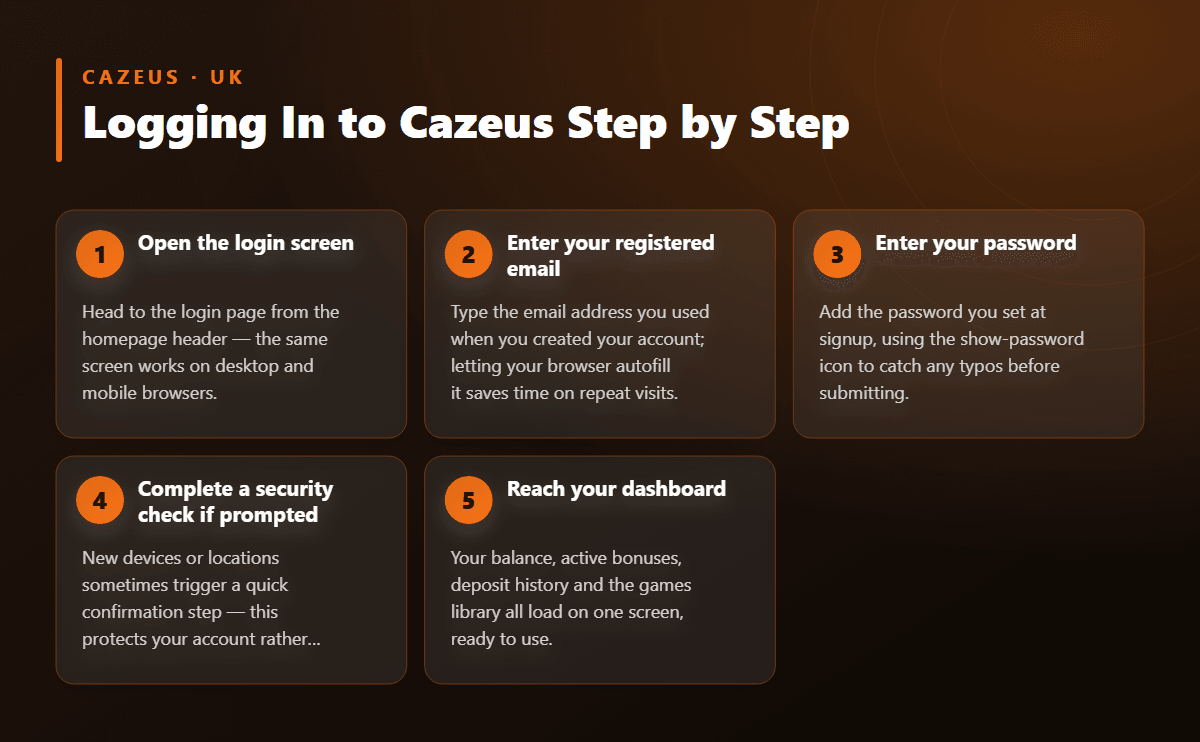
1
Open the login screen
Head to the login page from the homepage header — the same screen works on desktop and mobile browsers.
Logging in to Cazeus takes seconds once you have your email and password ready, whether you're on a desktop browser or a mobile phone. There's no app to install — just open the login screen, enter your details, and your dashboard, games library and active bonuses are ready to go. This guide covers password recovery, common login hiccups and how to keep your account secure.
Cazeus runs entirely through your browser, so there's no separate app to install on your phone or tablet before you can play. Open the login screen from the homepage header, type in the email and password you set during registration, and your account loads straight away. The same login screen and the same account work whether you're sat at a desktop, using a laptop, or logging in from your phone on the bus.
Because everything happens in-browser, there's nothing to update and nothing taking up storage on your device. You'll get the full site: games, cashier, promotions and account settings, not a stripped-down version.
If you haven't created an account yet, you'll need to register first before any login details exist to use. Once you have, bookmarking the login page saves a step on future visits, and most browsers will offer to remember your email address so only the password needs typing each time.
| Issue | Likely Cause | What to Do |
|---|---|---|
| Password not accepted | Mistyped email or an outdated saved password | Reset your password via the recovery link on the login screen |
| No reset email arriving | Email landed in spam or junk folder | Check spam folder, then request another reset email |
| Login form won't load | Browser cache or an outdated browser | Clear your cache and cookies, or try a different browser |
| Account seems inactive | Email verification link not yet confirmed | Open your inbox and confirm the verification email first |
| Balance shows an unexpected currency | Account display set to Bitcoin or Ethereum | Switch the display currency in your account settings |
| Repeated wrong-password errors | Caps lock on or wrong keyboard layout | Check caps lock and retype carefully, avoiding autofill errors |
Everyone loses track of a password eventually, and Cazeus makes getting back in straightforward. On the login screen, select the forgotten password option and enter the email address linked to your account. A reset link lands in your inbox shortly afterwards — follow it to choose a new password, and you're straight back into your account with your balance, history and bonuses exactly as you left them.
A few habits make recovery smoother next time:
Account recovery isn't limited to passwords. If you can't remember which email you signed up with, or you suspect someone else has accessed your login, support can help confirm the details on file and secure the account again.
Most login trouble falls into a handful of familiar categories, and working through them in order usually gets you back into your account without needing to contact support at all.
If none of these explain what you're seeing, take a screenshot of any error message and get in touch with support — having the exact wording speeds up finding a fix.
Follow these steps to reach your dashboard from a computer, tablet or phone.
Your login details are the only thing standing between your balance and anyone else who gets hold of your device, so it's worth treating them with the same care as online banking. Choose a password you don't reuse on other sites, and never share your login details with anyone claiming to represent support — genuine staff will never ask you to hand over your password by email or chat.
Log out fully once you're finished playing, particularly on a shared family computer or a public device. Leaving a session open on a borrowed phone is one of the easiest ways for someone else to access your account without you knowing.
If you're ever asked to confirm a security prompt during login — for instance when signing in from a new device or location — that's a normal protective check to confirm the access is genuinely coming from you, not a sign that anything has gone wrong with your account. Treat it as a quick extra step rather than a warning sign.
Once you're logged in, your account can display and play in pounds, Bitcoin or Ethereum. If you deposited using crypto, your balance and bets may default to that currency rather than GBP — worth checking before you start wagering, especially if you're used to thinking in pounds and want your stakes to match.
Changing the display currency is done from your account settings menu after login, and switching it won't affect funds you've already deposited or any bonus credit sitting in your balance — it simply changes how figures are shown on screen. If you regularly move between a card deposit and a crypto top-up, it's worth confirming the active currency each time you log in before placing a bet.
Once your dashboard loads, everything is a click away: your balance, deposit history, active promotions and the full games library sit together in one view. From here you can head straight into the live casino tables, browse through the slots collection, or check what's running on the sportsbook — no extra navigation needed.
Your dashboard also shows any bonus currently attached to your account, along with how much of the wagering requirement you've cleared so far. That's useful if you're partway through meeting the terms on a deposit match and want to track progress without digging through menus.
If you're logging in for the first time after registering, check the welcome bonus page for the current terms before making your first deposit — the match offer and free spins are credited automatically once you fund your account, so there's no code to remember.